Image Resizer
Resize images to exactly 200 by 200 pixels using one of two processing modes. Crop-to-fill creates an edge-to-edge sq...
What Image Resizer does
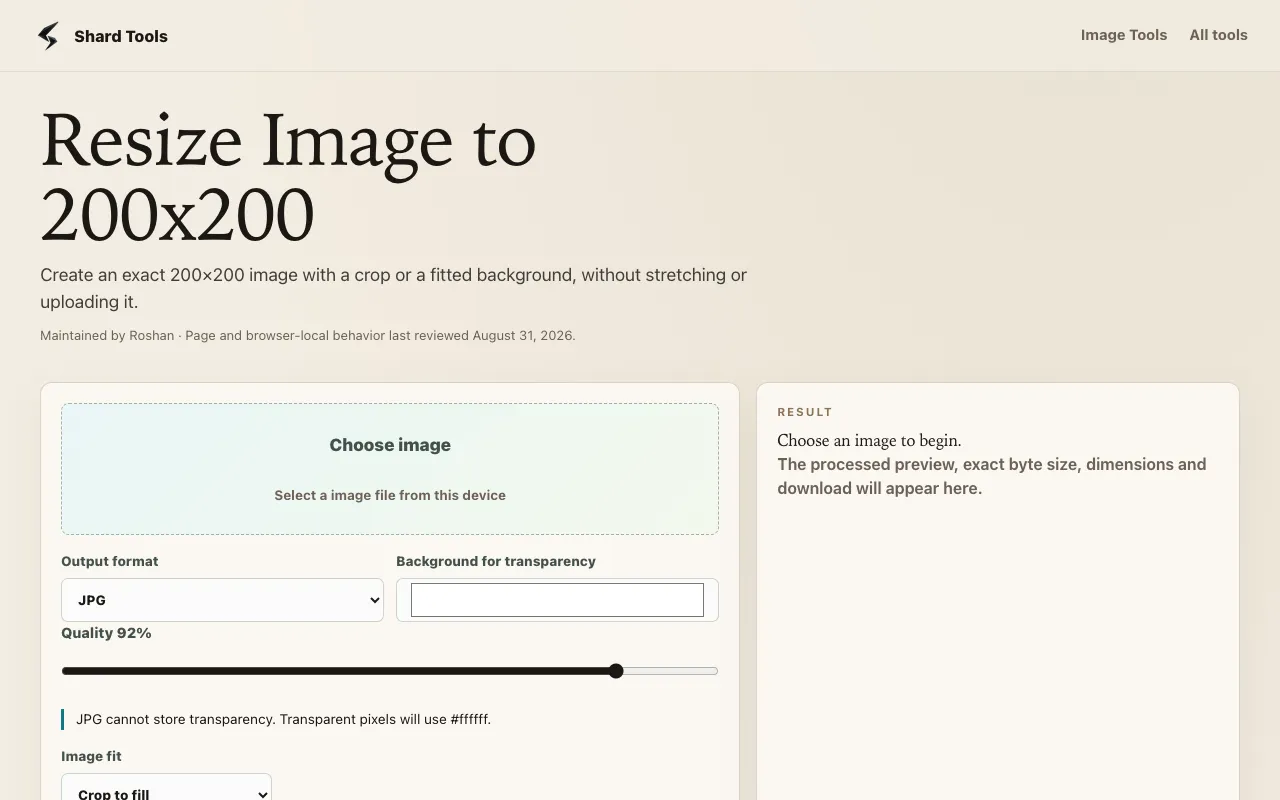
Image Resizer to 200x200 is a browser-based tool that creates exact 200-by-200-pixel outputs from uploaded images or videos. Users select one of two processing modes: crop-to-fill produces an edge-to-edge square by removing outer areas, while fit-with-background preserves the complete original image by adding padding, preventing distortion. Before downloading, the interface displays the final dimensions and file size. All processing occurs locally in the browser; no files are uploaded to a server, making it suitable for sensitive profile photos or account images. The Shard Tools version distinguishes itself through its transparent handling of aspect-ratio challenges and its immediate visual feedback. Unlike many resizers that stretch content or hide cropping decisions, this tool explicitly offers two honest modes and shows the generated square dimensions before download. The interface includes output-format selection (JPG, PNG, WebP), quality adjustment, and a background color option for transparent exports. Because the canvas dimensions are read from the generated output, users can verify the exact 200×200 result rather than assuming it.
How to use the Shard Tools Image Resizer
- 1
Select the Image Resizer to 200x200 tool on Shard Tools
- 2
Upload an image or video file from your device
- 3
Choose a processing mode: Crop to fill for a square crop or Fit with background to preserve the full image with padding
- 4
Optionally adjust output format (JPG, PNG, WebP), quality, and background color
- 5
Review the displayed final dimensions and file size, then download the resized file
Best for
Ideal for content creators preparing profile pictures, social media avatars, or thumbnail images that require a precise 200×200-pixel square without distorting the original composition.
Limitations
- Only resizes to a fixed 200×200-pixel dimension; custom sizes require another tool
- Crop-to-fill mode removes outer image areas; users must choose the mode that best preserves their content
- No batch processing capability; each image must be uploaded and processed individually
Image Resizer FAQ
- Will my uploaded image be stored or shared after resizing?
- No, all image processing happens locally in your browser. The tool does not upload your file to any server, so your images remain private and are not stored.
- Can I resize a video to exactly 200×200 pixels?
- Yes, the tool supports both images and videos. You can upload a video file and select either crop-to-fill or fit-with-background mode to produce a 200×200 output.
- What happens if my image is already smaller than 200×200?
- The tool will process the uploaded file, but if the original dimensions are smaller than 200×200, the output may not reach the exact 200×200 pixel target without stretching or adding significant background padding, depending on the mode selected.
- Does the tool support WebP output format?
- Yes, WebP is listed as an available output format alongside JPG and PNG, giving you options for file size and quality balance.
More Image Resizer tools
- 0110015 Tools10015.io
Resizes an image to specific pixel dimensions or by percentage, with the option to lock the aspect ratio.
- 02Free Image Resizerfreeimageresizer.net
Free Image Resizer is an online tool for resizing, compressing, cropping, and optimizing images directly in your brow...
- 03ImageVideoFitimagevideofit.com
Image Resizer is a free online tool that allows users to resize images and videos directly in their web browsers. Ide...
- 04Local Resizerlocalresizer.com
Image resizing performed entirely in your web browser eliminates the need to upload files to external servers. All pr...
- 05MyToolsBenchmytoolsbench.com
Resize images by exact pixel dimensions, by percentage, or with a social media preset. Handles batches in the browser...
- 06THAI SOLVEthaisolve.com
THAI SOLVE is a free, browser-based image optimization platform designed to help users resize and compress images to ...
- 07XConvertxconvert.com
Adjusts dimensions and aspect ratio of image files.
Similar tools
Based on shared tags