01

01
Inventive HQ
inventivehq.com
Compress images to a target file size while preserving quality. Reduce JPEG, PNG, WebP sizes for email or web.
Compresses images to reduce file size while maintaining quality, supporting JPEG, PNG, and WebP formats for efficient email or web use. Ideal for professionals, students, and anyone needing to shrink image files without compromising their visual integrity, enhancing uploading speeds and storage efficiency.
Compress images to a target file size while preserving quality. Reduce JPEG, PNG, WebP sizes for email or web.
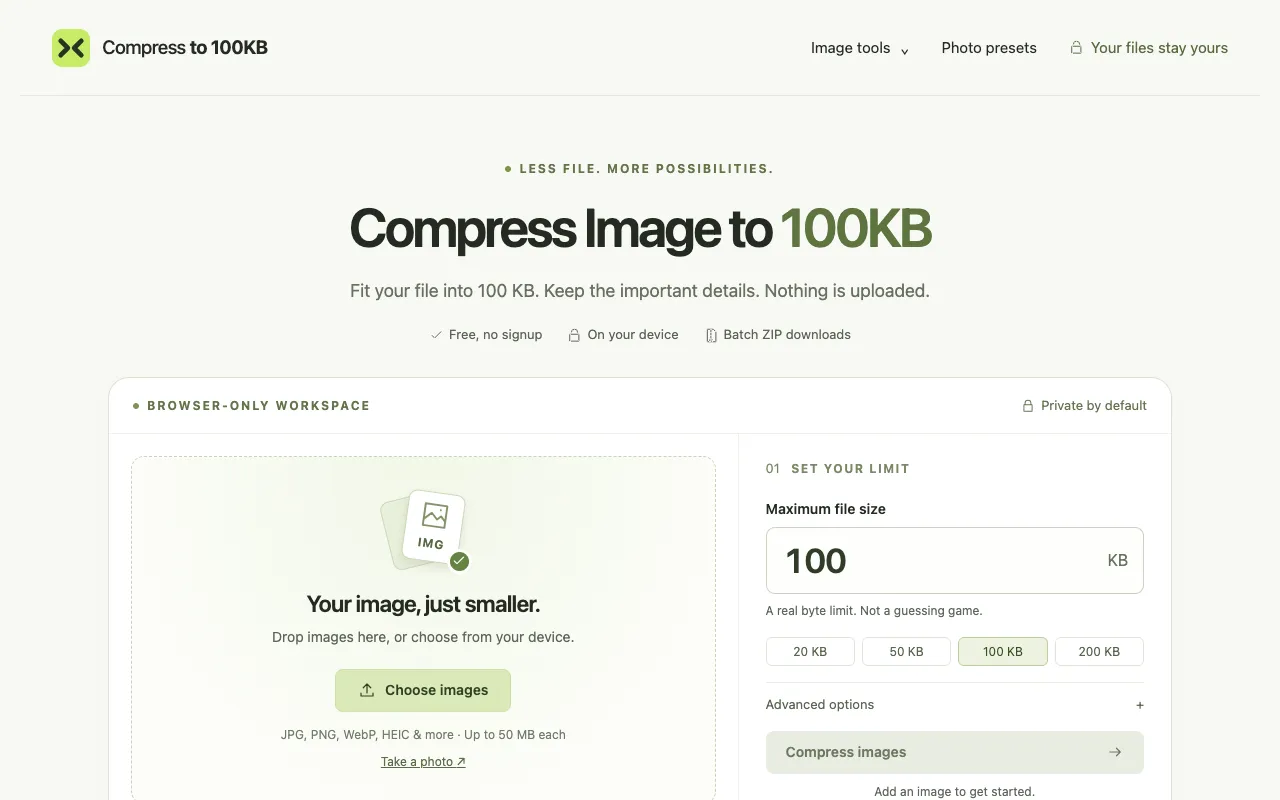
A browser-based image compression tool lets you reduce files to a specific size limit of your choosing. The tool supp...
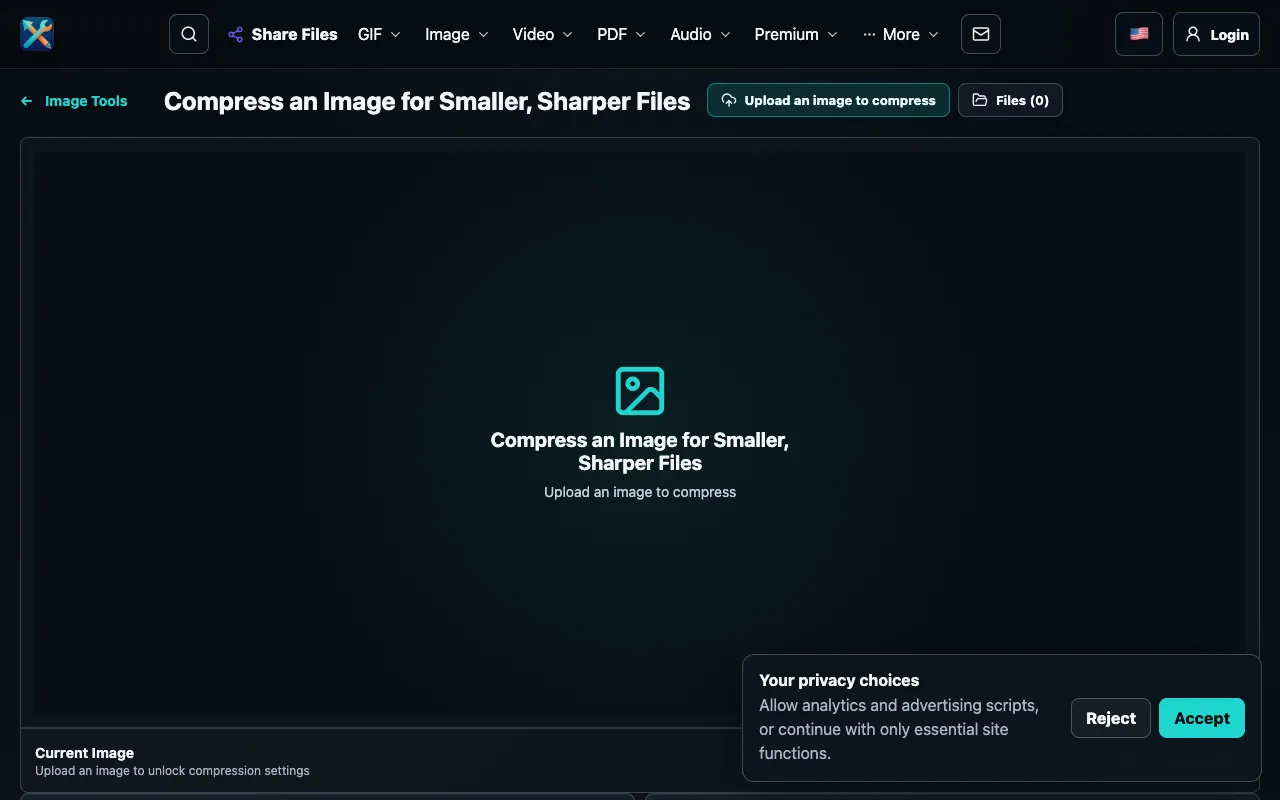
Compress JPG and PNG images directly in your browser with granular control over output quality and dimensions. Adjust...


Compress JPG, PNG, WebP and GIF images in your browser. Set a target file size, tune quality with a live preview, res...
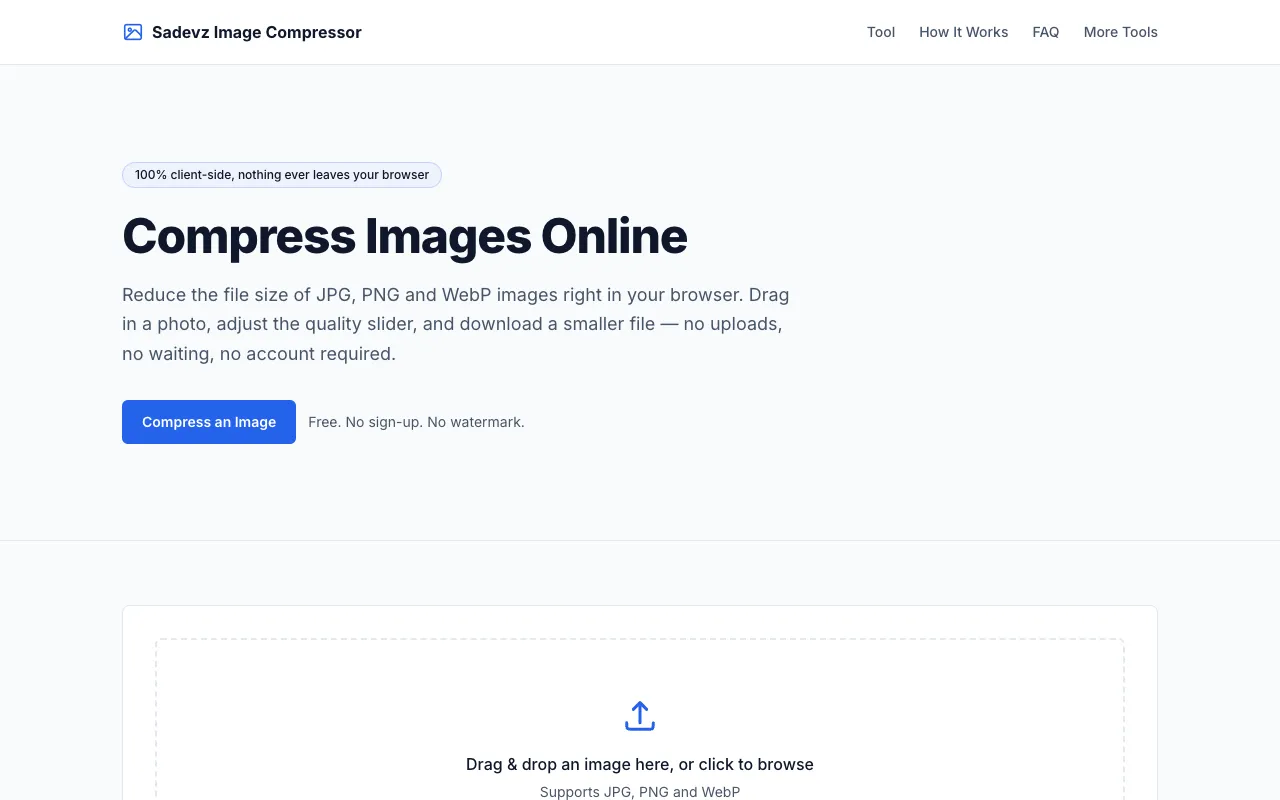
Image Compressor is a free online tool for reducing image file sizes while preserving visual quality directly in your...

Smart lossy compression for PNG, JPEG, WebP, and AVIF that reduces file sizes by 50-80% with minimal quality loss.

Side by side
| Tool | Best for | Strengths | Limitations |
|---|---|---|---|
| Inventive HQ inventivehq.com | Target file size with quality preservation |
|
|
| Compress to 100KB compressto100kb.com | Hard file-size limit with privacy |
|
|
| ConvertAndEdit convertandedit.com | Granular quality and dimension control |
|
|
| DevBolt devbolt.dev | Web developers needing browser privacy |
|
|
| MyToolsBench mytoolsbench.com | Unlimited size, no-signup compression |
|
|
| Sadevz sadevz.com | Simple, automatic compression |
|
|
| TinyPNG tinypng.com | Smart lossy compression with batch options |
|
|
| XConvert xconvert.com | Broad format support with presets |
|
|
Buyer's guide
When picking an image compressor, first decide whether you need to hit a specific file-size target or simply shrink the file as much as possible while keeping it looking good. If you have a hard limit—like an email attachment cap—choose a tool that lets you set an exact KB or MB target, and confirm it processes images on your device so your files stay private. If you just want the smallest file without a strict cap, look for a tool with a quality slider or automatic reduction that shows a before-and-after preview, so you can judge the visual impact yourself.
Questions