Watermark Image
Add a text or logo watermark to your photos in the browser, with adjustable position, size and opacity. Processes bat...
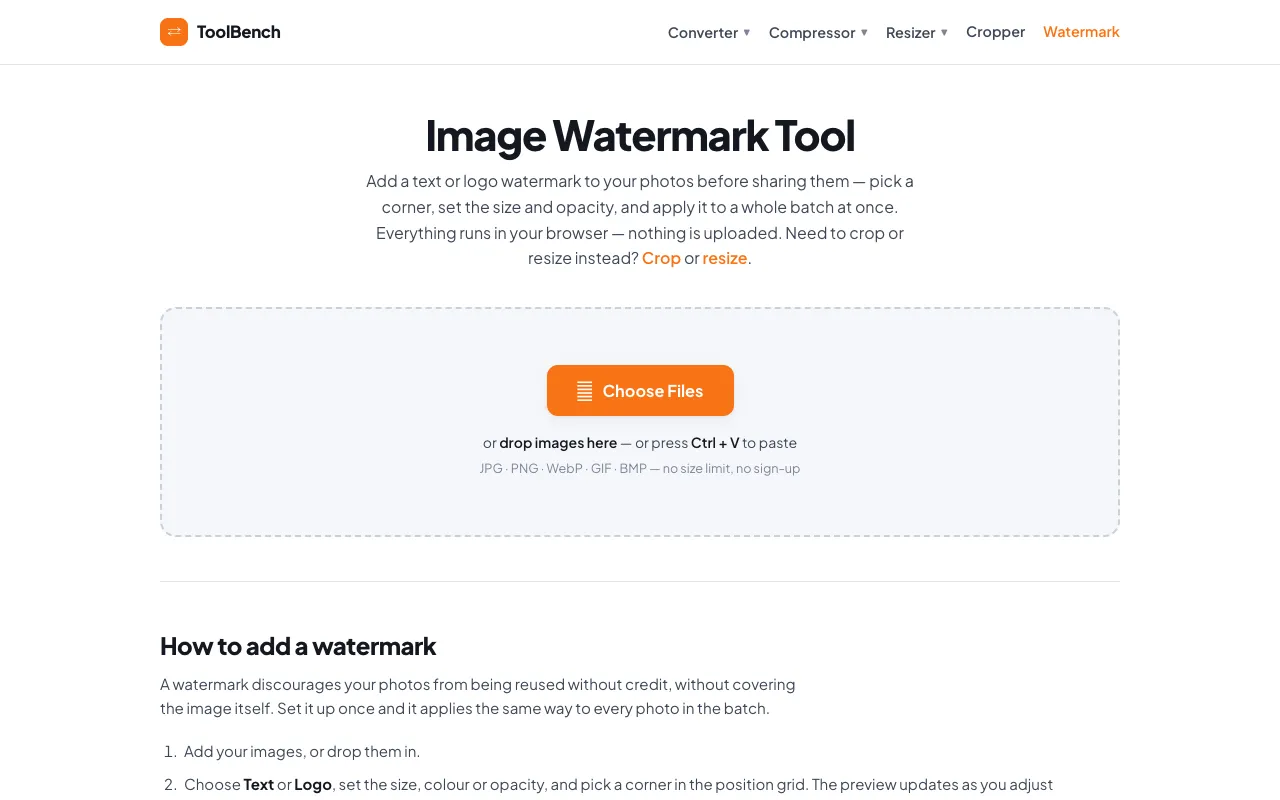
What Watermark Image does
The Watermark Image tool on MyToolsBench lets users add text or logo watermarks to photos directly in the browser. You upload one or multiple images, choose between adding custom text or a logo file, and adjust the watermark's size, colour, and opacity before positioning it on the image. The result is a modified photo with the watermark applied, ready for download individually or as a batch ZIP file. The site emphasizes that all processing happens locally—no images are uploaded to a server, no account is required, and there is no file size limit. This makes it suitable for photographers, artists, and businesses who want to protect their work without sending files elsewhere. The interface guides you through selecting the watermark type, fine-tuning its appearance, and applying the same settings across an entire batch with a single click.
How to use the MyToolsBench Watermark Image
- 1
Upload one or more photos using the file selector or drag-and-drop area.
- 2
Choose whether to add a Text watermark or a Logo image, then enter your desired text or select a logo file.
- 3
Adjust the watermark Size, Colour, and Opacity using the provided sliders or input fields.
- 4
Select a position corner in the grid to place the watermark on the photo.
- 5
Click Apply Watermark to process the images, then download each file individually or as a combined ZIP archive.
Best for
Photographers, artists, and businesses who need to add visible watermarks to multiple images at once while keeping their files private, since all processing occurs locally in the browser without uploads or account requirements.
Limitations
- The page includes an advertisement section that may distract from the tool's interface.
- Watermark appearance and positioning are preview-based; final output quality depends on the source image resolution.
- No unit switching or advanced editing controls beyond size, colour, opacity, and corner positioning are available.
Watermark Image FAQ
- Do I need to create an account or upload my images to a server?
- No account is required and no images are uploaded; all watermark processing happens locally in your browser using the Canvas API.
- Can I watermark multiple photos at once?
- Yes, you can add the same watermark settings to an entire batch of images, and download them individually or as a single ZIP file.
- What file formats and sizes are supported?
- The tool accepts JPG, PNG, WebP, GIF, and BMP files with no stated size limit, and processes them entirely on your device.
- What makes a good logo file for a watermark?
- A PNG with a transparent background works best so the logo does not sit inside a solid box over your image.
More Watermark Image tools
Similar tools
Based on shared tags