Image Converter
Free online image converter that handles JPG, PNG, WebP and AVIF entirely in your browser. Drag in a batch, pick an o...
What Image Converter does
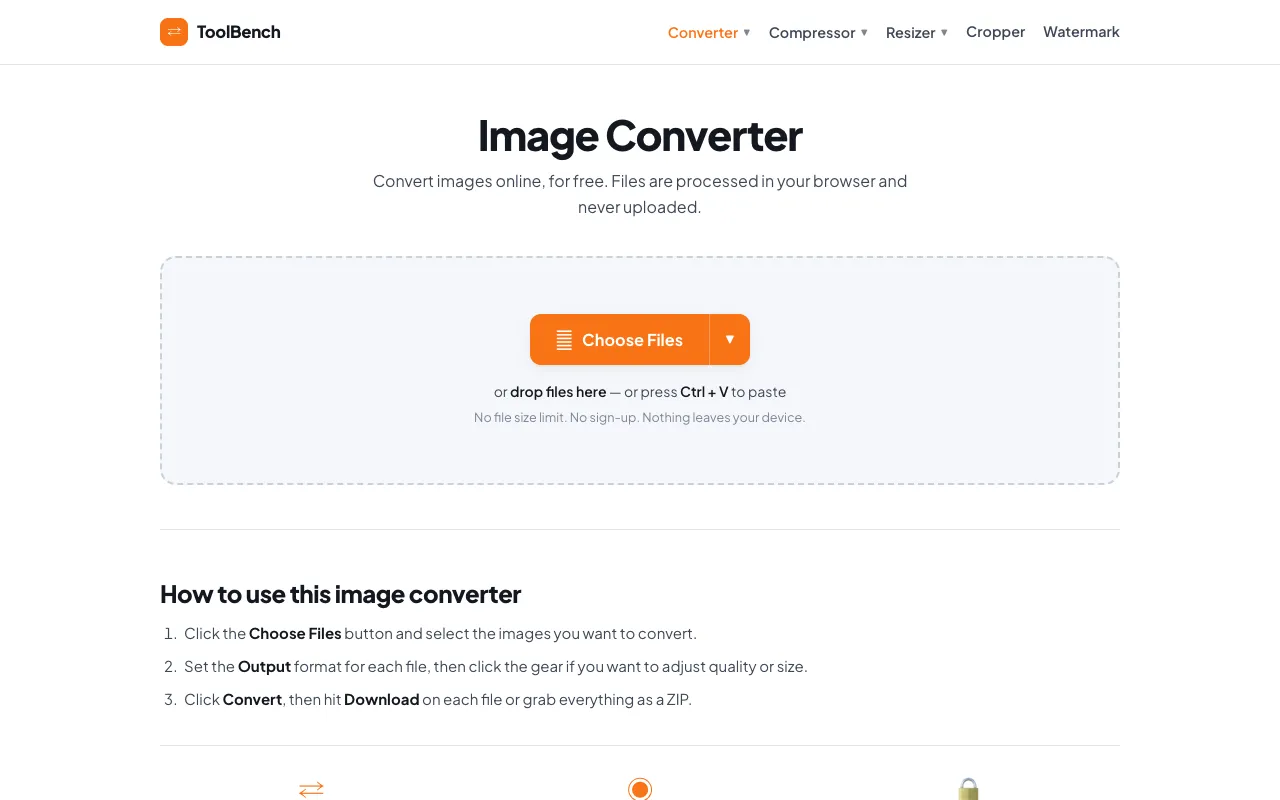
Image Converter is a free online tool that transforms images between JPG, PNG, WebP, AVIF, GIF, BMP, TIFF, and PDF formats. Users upload files, select an output format, and can fine-tune quality or resize settings per file before downloading the converted result or a combined ZIP archive. The service processes every file entirely within the user's browser, ensuring that no data leaves the device. The site also bundles related utilities—Image Compressor, Image Resizer, Image Cropper, and Image Watermark—all operating with the same privacy-first approach.
How to use the MyToolsBench Image Converter
- 1
Click Choose Files and select the images you want to convert from your device, Dropbox, Google Drive, OneDrive, or paste via URL
- 2
Set the Output format for each file and click the gear icon to adjust quality or resize if needed
- 3
Click Convert to process the files entirely in your browser
- 4
Hit Download on each file individually or grab all results as a ZIP archive
- 5
Repeat the process with additional files using the Convert More option
Best for
This option suits anyone who needs to convert multiple images to different formats in one batch without uploading files to a server or hitting file size limits.
Limitations
- Ads appear on the page
- Cloud storage integrations (Dropbox, Google Drive, OneDrive) are listed as SOON, not currently available
- Results are estimates and may vary depending on the original image characteristics
Image Converter FAQ
- Can I convert multiple images at once?
- Yes, the tool supports batch conversion. You can add several files, set individual output formats and settings for each, and download them together as a ZIP file.
- Are my images uploaded to the server?
- No, all conversion happens within your browser. Files are never sent to or stored on a server, so nothing is uploaded and there is no size or file-count limit.
- What output formats are available?
- The converter supports JPG, PNG, WebP, AVIF, GIF, BMP, TIFF, ICO, and PDF output, with per-file control so different images in one batch can be sent to different formats.
- Can I adjust quality or resize images during conversion?
- Yes, a gear icon next to each file lets you adjust quality and resize settings before converting.
More Image Converter tools
Similar tools
Based on shared tags