Image Tools4 options compared

Image Converter

Converts between common image formats including JPG, PNG, WEBP, BMP, GIF, and TIFF using an intuitive interface. Users can upload their image files, select the desired output format, and adjust settings like resolution and quality before downloading the converted file. Helps users efficiently manage and share images across different platforms and devices by standardizing file types and optimizing...

Editors’ Top PickBased on community votes
Other OptionsRanked by votes
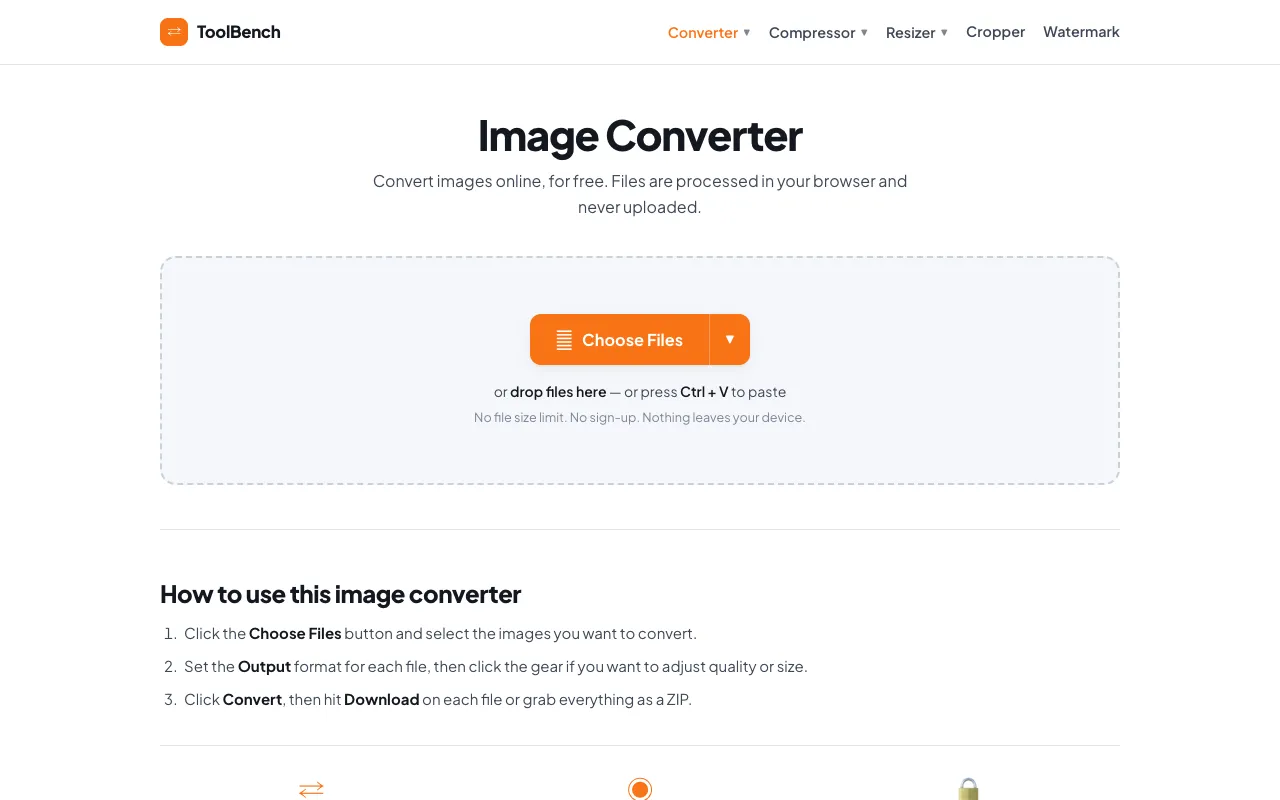
  1. Screenshot of MyToolsBench
    03
    MyToolsBench
    mytoolsbench.com

    Free online image converter that handles JPG, PNG, WebP and AVIF entirely in your browser. Drag in a batch, pick an o...

Side by side

Image Converter options compared

ToolBest forStrengthsLimitations
Coolors
coolors.co
Designers needing JPG/PNG conversion
  • Integrated with Coolors color tools
  • Simple format translation for web and print
  • Limited format support compared to others
  • No batch conversion mentioned
FreeConvert
freeconvert.com
General image format conversion
  • Supports JPG, PNG, WEBP, BMP, GIF, TIFF
  • Handles both simple and complex digital asset prep
  • Community votes: 0, indicating limited user feedback
  • No mention of batch or advanced options
MyToolsBench
mytoolsbench.com
Privacy-focused conversion without uploads
  • Entirely browser-based, no files leave device
  • No file size limit, no sign-up required
  • Supports AVIF and batch conversion
  • Only handles JPG, PNG, WebP, AVIF – missing BMP, TIFF, GIF
  • Dropbox/Google Drive integration listed as SOON
XConvert
xconvert.com
Users needing 35+ formats including HEIC and RAW
  • Wide format support including HEIC, RAW, TIFF, PSD
  • Batch conversion supported
  • Advanced options for resolution and quality presets
  • Ads on the page
  • Requires uploading files to server

Buyer's guide

How to choose a image converter

When picking an image converter, first check whether the tool supports your specific input and output formats — some skip less common types like HEIC or RAW. If you are converting sensitive images, prioritize browser-only processors that never upload your file to a server. If you regularly convert multiple files at once, look for batch support; otherwise a simple single-file converter will suffice. Finally, consider whether you need extra controls like resolution, quality presets, or file-size targets, as these vary widely across the options.

Questions

Image Converter FAQ

Can I convert HEIC files to JPG without losing quality?
FreeConvert and XConvert both support HEIC to JPG conversion and maintain visual integrity during the process, though higher quality settings preserve more detail at the cost of larger file size.
Do any of these tools convert images entirely in the browser?
MyToolsBench processes files entirely in your browser and never uploads them, making it the best choice if privacy is your top concern.
Which converter supports the most image formats?
XConvert supports 35+ formats including JPG, PNG, WebP, HEIC, TIFF, AVIF, BMP, GIF, ICO, SVG, PSD, and RAW camera files, far more than the other options listed.
Can I convert multiple images at once with these tools?
MyToolsBench and XConvert both support batch conversion, allowing you to convert several files in a single session rather than one at a time.
Is there a file size limit when converting images?
MyToolsBench has no file size limit, while FreeConvert and XConvert may impose limits depending on your account plan or the specific output format chosen.
Keep Exploring

Related tools in Image Tools

View all →
Free Image Converter: Coolors, FreeConvert, XConvert + 1 More | The Free Tools Directory