JPG to PDF
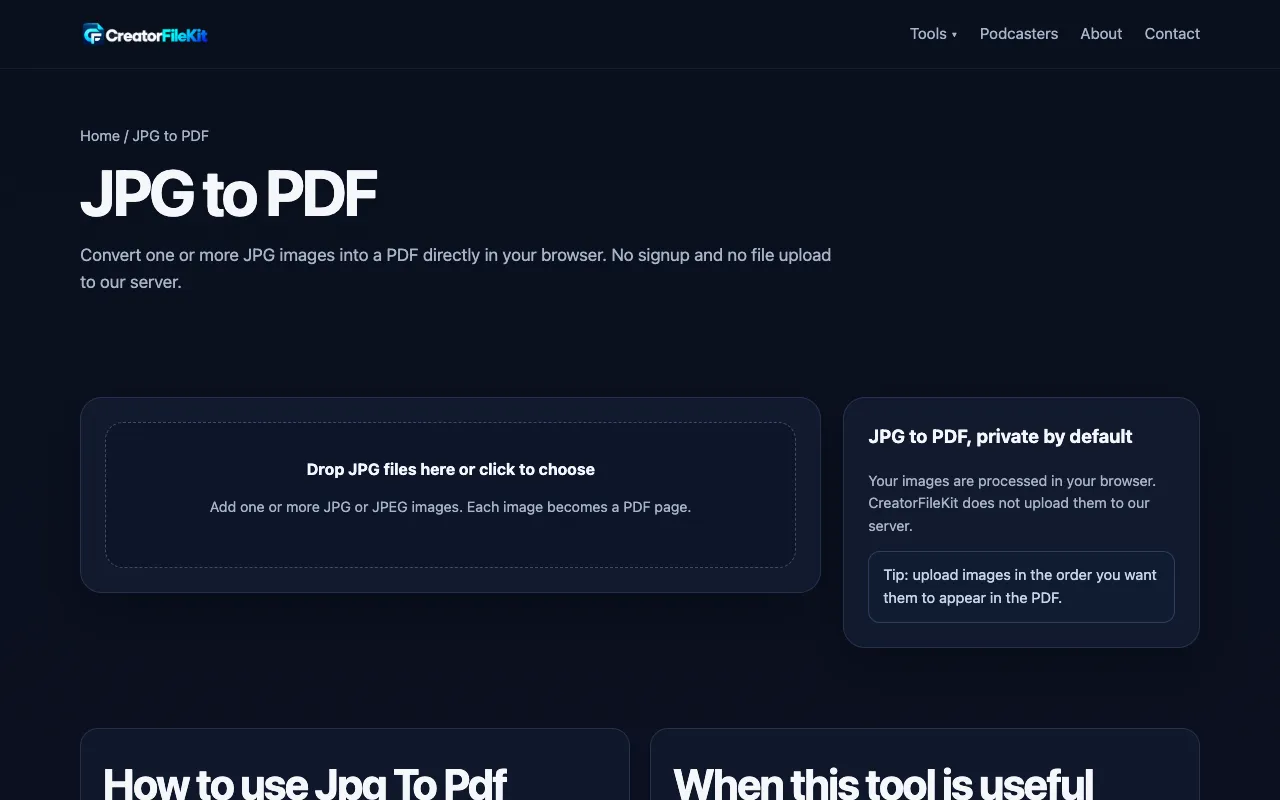
Convert one or more JPG images into a PDF directly in your browser. No signup and no file upload to our server.
What JPG to PDF does
CreatorFileKit's JPG to PDF tool lets you combine one or more JPG images into a single PDF document entirely within your browser. The output preserves each uploaded image as a separate page, and you can adjust page size, layout, and margins before generating the file. Because the conversion happens locally, no images are sent to a server, and no account is required to use the service. What sets this version apart is its straightforward, step‑by‑step interface that balances simplicity with useful options. You can choose between A4 page size, fitting the image to the page, or matching the original dimensions, and you have control over page margins ranging from none to medium. The tool also displays a preview of the page order before you create the PDF, which helps avoid re‑arranging files after download. Compared to other JPG‑to‑PDF converters, CreatorFileKit keeps the process lightweight while still offering layout flexibility without requiring registration or file uploads to external servers.
How to use the CreatorFileKit JPG to PDF
- 1
Open the JPG to PDF page on CreatorFileKit.
- 2
Drop one or more JPG or JPEG files into the upload area or click to choose them from your device.
- 3
Arrange the image order and select your preferred page size, layout, and margin options.
- 4
Click the Create PDF button to generate the document.
- 5
Review the page order in the preview and download the final PDF to your computer.
Best for
This tool suits anyone who needs to quickly bundle multiple JPG images into a single PDF without creating an account or uploading files to a server, especially when adjusting page size and margin settings is important.
Limitations
- Image quality depends on the original JPG resolution and cannot be improved by the conversion.
- The tool only supports JPG and JPEG file formats; other image types must be converted first.
- Advanced PDF editing features, such as text extraction or page reordering after creation, are not available.
JPG to PDF FAQ
- Can I upload more than one JPG image at once?
- Yes, the tool is designed to combine multiple JPG images into a single PDF. You can add several files, and each one will become a separate page in the output document.
- Will converting JPG to PDF improve the image quality?
- No, the PDF contains the image data exactly as it exists in the original JPG files. The conversion does not restore detail that has been lost through prior compression.
- Are my JPG files uploaded to CreatorFileKit's servers?
- No, the tool processes all images directly in your browser. Files are not sent to the server, which helps keep your images private.
- What page size and layout options are available?
- You can choose between A4 page size, fitting the image to the page, or matching the original image dimensions. Additionally, you can set the page margin to none, small, or medium before creating the PDF.
More JPG to PDF tools
Similar tools
Based on shared tags