MP4 to MP3
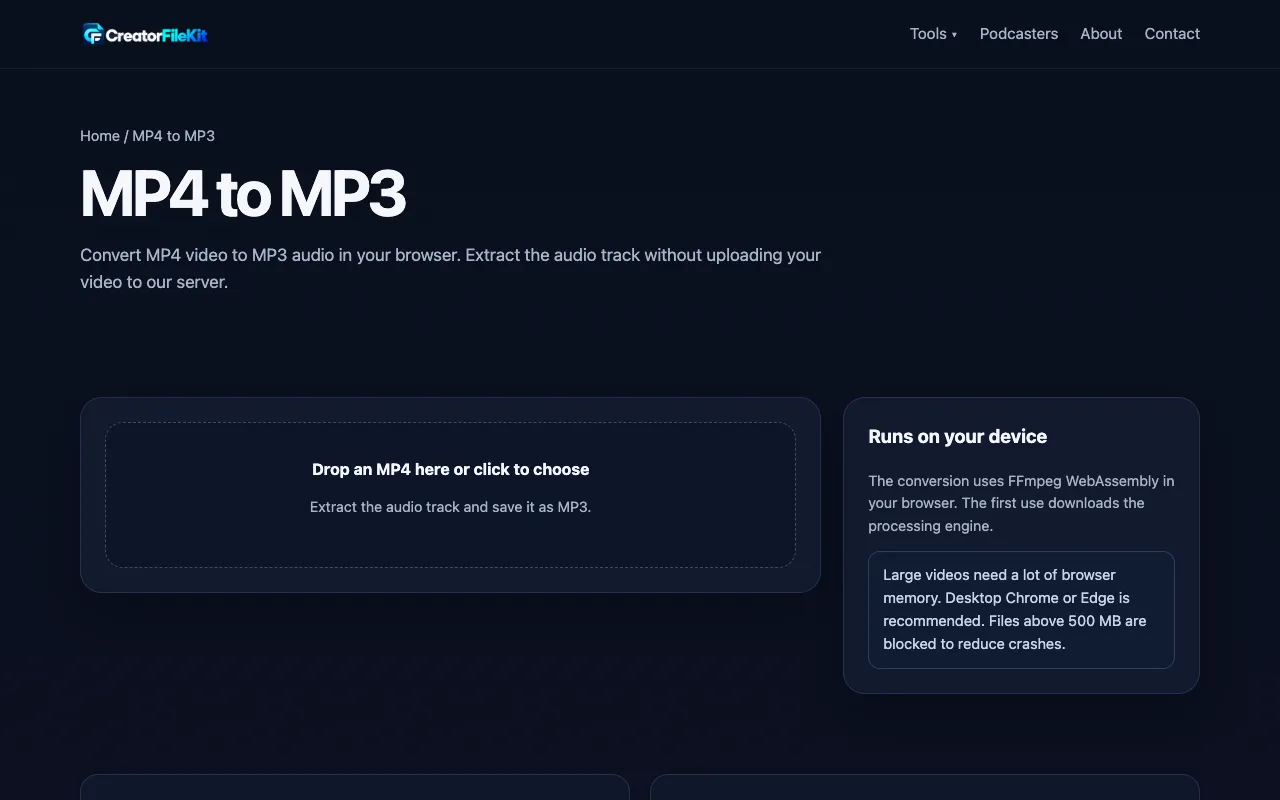
Convert MP4 video to MP3 audio in your browser. Extract the audio track without uploading your video to our server.
What MP4 to MP3 does
CreatorFileKit's MP4 to MP3 tool extracts the audio track from video files directly in the browser. Users upload an MP4 and choose from four MP3 bitrate options—128 kbps for smaller files, 192 kbps as a general balance, and 256 or 320 kbps for high-quality rips suitable for editing. The result is a downloadable MP3 that can be previewed before deletion. The service emphasizes privacy by processing files locally without uploading the video to a server, using FFmpeg WebAssembly for conversion. It also includes a built-in audio player to listen to the beginning, middle, and end of the extracted track. Compared to other extractors, this version offers explicit bitrate tiers with descriptive labels and a preview player, all while keeping the source video on the user's device.
How to use the CreatorFileKit MP4 to MP3
- 1
Drop or choose an MP4 video from your device
- 2
Choose the MP3 bitrate (128, 192, 256, or 320 kbps)
- 3
Click Convert to extract the audio track
- 4
Preview the beginning, middle, and end of the MP3
- 5
Download the MP3 file or delete the video from the page
Best for
This option suits anyone who wants to extract audio from their own MP4 files without uploading the video to a remote server, especially those needing adjustable quality tiers and a quick preview before downloading.
Limitations
- Conversion runs in the browser, so very long or high-resolution videos may use significant memory
- MP3 is a lossy format, so the tool cannot improve audio that is already damaged or heavily compressed
- The first conversion requires downloading the FFmpeg WebAssembly engine, adding a brief initial load time
MP4 to MP3 FAQ
- Will converting MP4 to MP3 improve the sound quality?
- No. The tool extracts and encodes the existing audio from the video; it cannot restore detail that is missing from the source.
- Which MP3 bitrate should I choose?
- 192 kbps is fine for most spoken audio. Choose 256 or 320 kbps when you want a larger, higher bitrate copy for further editing.
- Does my video leave my device during conversion?
- The current converter processes supported files in the browser. The media engine is downloaded to the page, but the selected MP4 is not uploaded to a CreatorFileKit server.
- Can I preview the extracted audio before downloading?
- Yes. After conversion, you can listen to the beginning, middle, and end of the MP3 before deciding to download or delete the video.
More MP4 to MP3 tools
Similar tools
Based on shared tags