Image to Text (OCR)
Pull the text out of a screenshot, photo or scan. Drag in an image or paste one from the clipboard and the OCR runs i...
What Image to Text (OCR) does
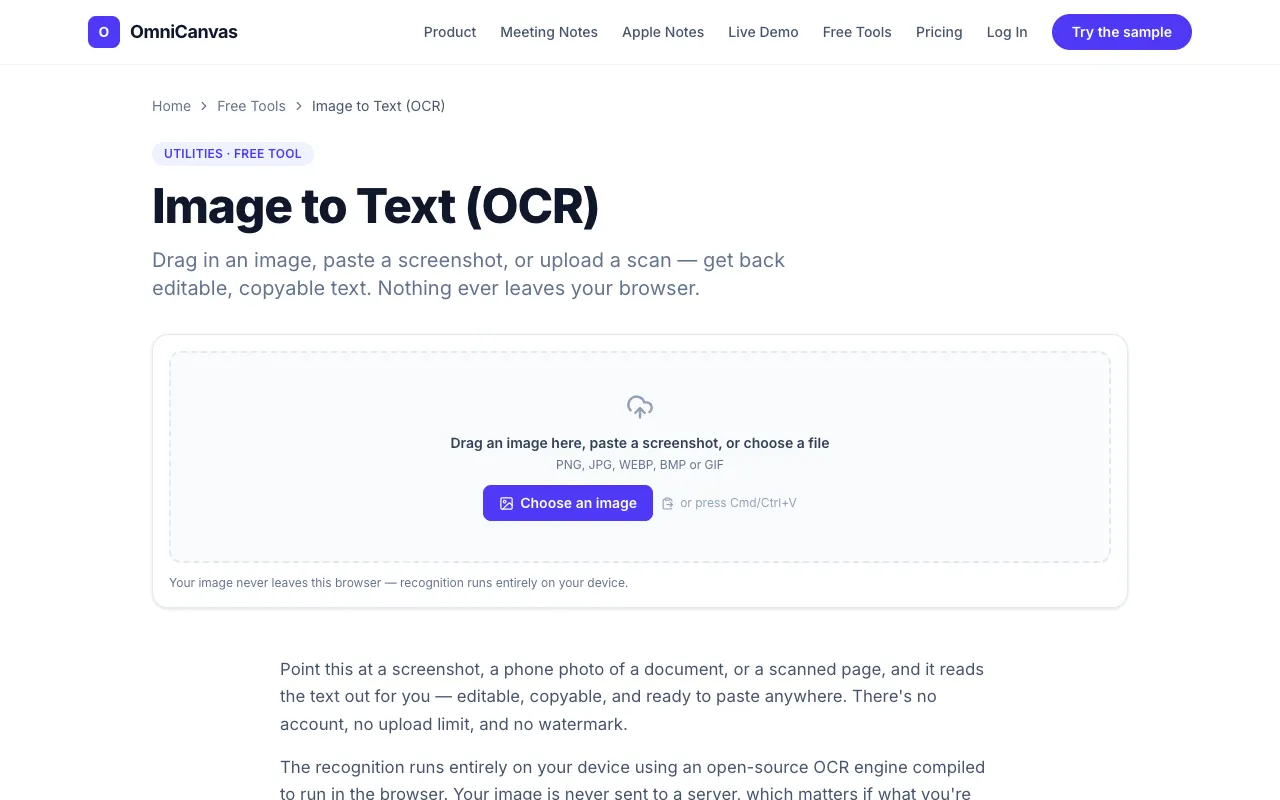
Image to Text (OCR) on OmniCanvas extracts text from images using an open-source OCR engine that runs entirely in the browser. Users get editable, copyable text output from screenshots, photos, or scans without uploading files or creating an account. The tool supports drag-and-drop, file selection, and pasting directly from the clipboard, delivering results ready for immediate use in other applications.
How to use the OmniCanvas Image to Text (OCR)
- 1
Drag an image file onto the OmniCanvas page or click to select one from your device
- 2
Paste a screenshot directly from the clipboard using Cmd/Ctrl+V for fastest processing
- 3
Click the Extract text button to run the OCR engine on the image
- 4
Review the extracted text in the editable output box and make corrections if needed
- 5
Copy to clipboard, download as .txt, or save directly into an OmniCanvas note
Best for
Ideal for anyone who needs to quickly digitize printed text from screenshots, scanned documents, or photos without uploading sensitive material to a server.
Limitations
- Handwriting and low-resolution images produce significantly worse results
- Complex layouts or stylized fonts may require manual correction after extraction
- Very large images may take a few seconds longer to process depending on device speed
Image to Text (OCR) FAQ
- Do I need to create an account or pay to use the OCR tool?
- No account or payment is required; the tool is free to use with no upload limits or watermarks on the free path.
- Is my image uploaded to a server when I use this OCR tool?
- No, the OCR engine runs entirely in your browser on your device; your image is never sent to a server.
- What types of images work best with this OCR converter?
- Clean, high-contrast printed text such as screenshots of articles, scanned book pages, typed documents, or clear photos of signs and menus produce the most accurate results.
- Can I extract text from handwritten notes or low-quality photos?
- Handwriting and low-resolution images produce meaningfully worse results, and manual correction may be needed for best accuracy.
More Image to Text (OCR) tools
Similar tools
Based on shared tags