Cornell Notes Generator
Take notes in the Cornell format — cue column, notes, and summary — with printable templates and .md export. Optional...
What Cornell Notes Generator does
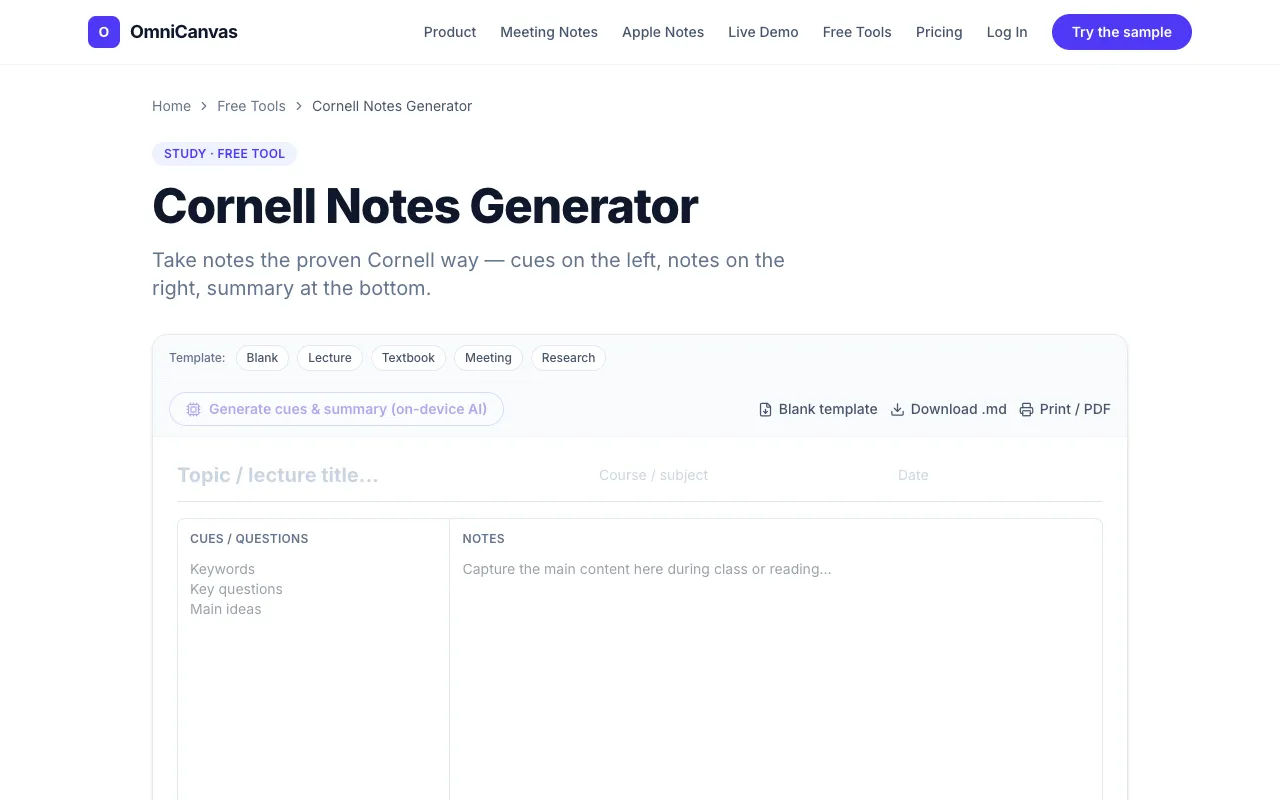
The Cornell Notes Online Template Generator on OmniCanvas lets you create a Cornell-format note page in your browser. You type your notes in the wide column, add keywords or questions in the narrow cue column, and write a brief summary in the bottom bar. The tool produces a printable template or lets you export the result as a .md file for use elsewhere. No account is needed to start, and all work happens on your device unless you choose the optional on-device AI to draft cues and summaries. The layout mirrors the classic Cornell method: a two-column structure for keywords and a summary band, designed to turn notes into an active review tool rather than a passive transcript.
How to use the OmniCanvas Cornell Notes Generator
- 1
Open the Cornell Notes generator on OmniCanvas and begin typing your lecture or reading notes in the large notes column.
- 2
Enter keywords, prompts, formulas, or questions in the narrow cue column that correspond to points in your notes.
- 3
Write a concise summary in the bottom summary bar, capturing the main idea in your own words.
- 4
Print the completed template or click the export option to save the page as a .md file.
- 5
If desired, use the optional on-device AI feature to auto-generate cues and a summary from your notes.
Best for
Students, researchers, or meeting participants who want a structured, printable note format that builds in a review step without needing to switch apps or create templates manually.
Limitations
- The tool is web-based, so an internet connection is required to access the generator.
- Export options are limited to .md format and printing; other file types are not mentioned.
- The optional AI features depend on on-device processing, which may vary by device capability.
Cornell Notes Generator FAQ
- Do I need to create an account to use the Cornell Notes generator?
- No signup is required to start generating and printing a Cornell template on OmniCanvas.
- Can I export my Cornell notes to a format other than .md?
- The generator currently supports exporting notes as a .md file or printing directly from the browser; other export formats are not listed.
- How does the on-device AI help with Cornell notes?
- The optional on-device AI can draft cues and a summary from your notes, letting you review and edit them without sending your data to a server.
- Is the Cornell template customizable, such as changing column widths?
- The material does not specify customization options for column widths or layout adjustments; the generator provides a standard Cornell format.