Markdown Editor
A split-pane Markdown editor with live preview, autosave, and export to .md, HTML or PDF. No account and no watermark...
What Markdown Editor does
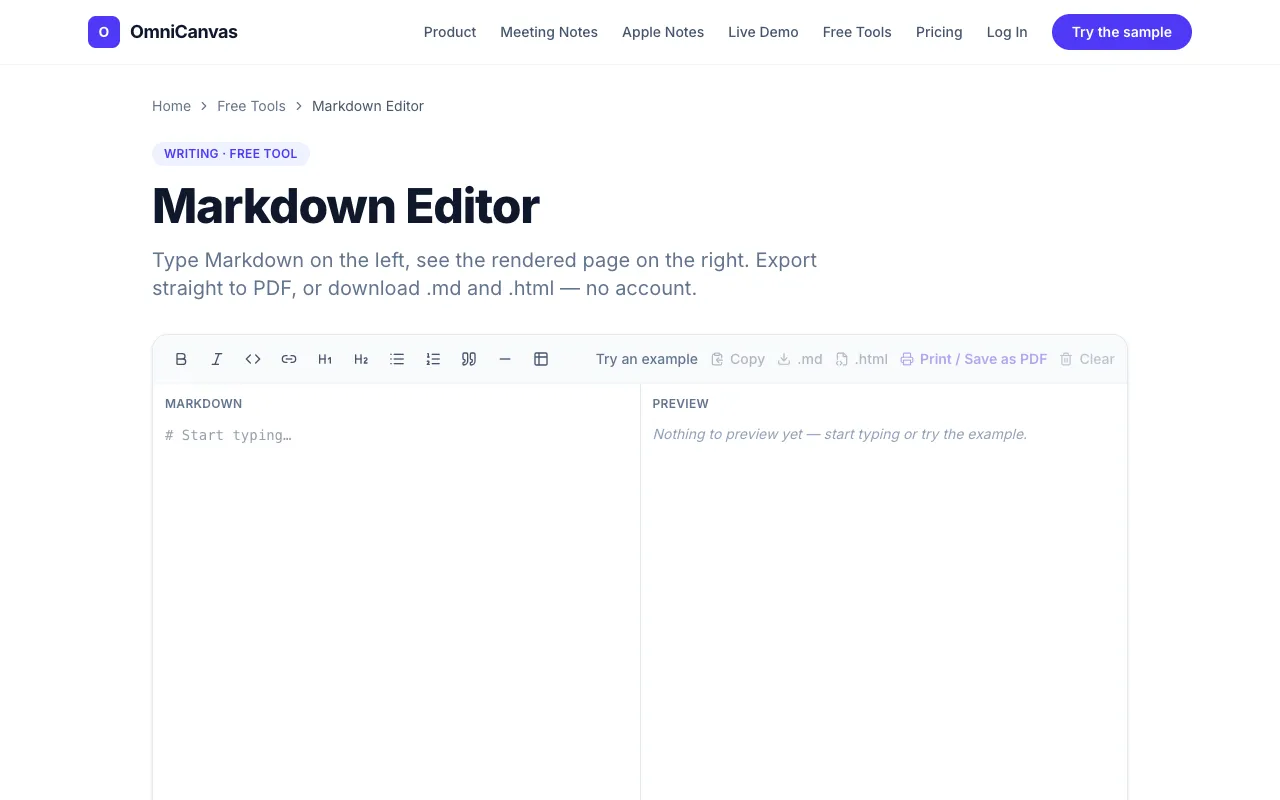
The Markdown Editor on OmniCanvas provides a split-pane interface where users write Markdown on the left and see formatted HTML on the right. It supports real-time preview, autosave, and export to Markdown, HTML, or PDF files. The tool is designed for developers, bloggers, and writers who need to create readable documents using simple markup without leaving the browser. No account is required, and exports carry no watermark.
How to use the OmniCanvas Markdown Editor
- 1
Open the Markdown Editor on OmniCanvas
- 2
Type or paste Markdown syntax into the left pane
- 3
Watch the formatted HTML render instantly in the right pane
- 4
Use the export button to save your work as .md, HTML, or PDF
- 5
Reset the editor with the clear function when starting a new document
Best for
Developers, bloggers, and writers who need a quick, account-free way to preview and export Markdown documents as HTML or PDF.
Limitations
- No unit switching between different Markdown flavors
- Export options limited to .md, HTML, and PDF only
- Interface may lack advanced syntax highlighting found in dedicated IDEs
Markdown Editor FAQ
- Do I need to create an account to use the Markdown Editor?
- No account is required. The tool runs entirely in the browser and exports files without watermarks.
- Can I export my Markdown as a PDF?
- Yes, the editor includes an export option to save your document as a PDF file.
- Is there an autosave feature?
- Yes, the editor includes autosave functionality to preserve your work locally.
- What file formats can I export to?
- You can export your work as Markdown (.md), HTML, or PDF files.