AI Meeting Notes Generator
Paste a Zoom, Teams or Meet transcript and get a summary, the decisions that were settled, action items with owners, ...
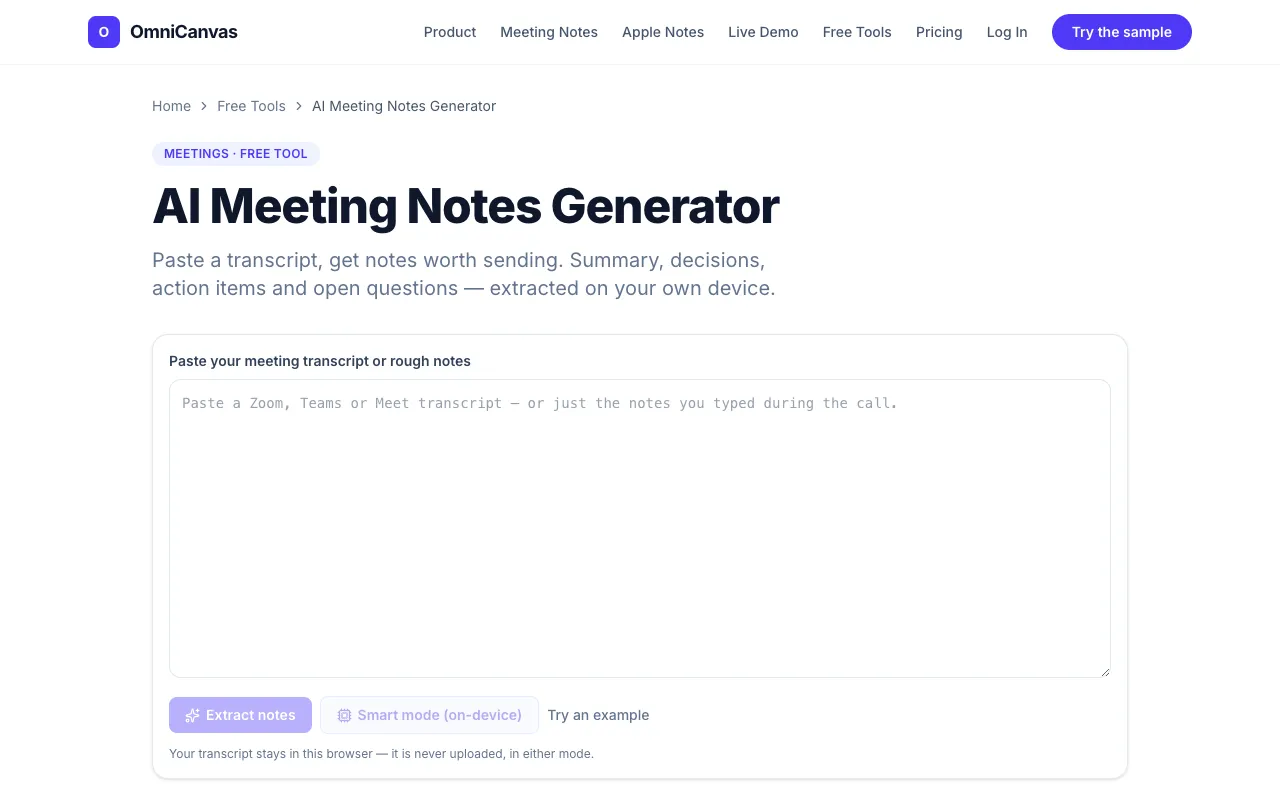
What AI Meeting Notes Generator does
The Free AI Meeting Notes Generator on OmniCanvas transforms a pasted conference transcript into a structured set of notes. It produces a short summary, lists the decisions that were genuinely settled, identifies action items with the speaker who volunteered, and flags the open questions left hanging. Because it runs entirely in the browser, the transcript is never uploaded to a server, there is no account required, and there is no per-minute fee. The tool also offers a Smart mode that uses WebGPU to run a small model on your own hardware if supported, falling back to an on-device extractor if not. It organizes the output into distinct sections—decisions, proposals, and open questions—so the resulting notes are skimmable rather than a raw replay of the conversation.
How to use the OmniCanvas AI Meeting Notes Generator
- 1
Open the AI Meeting Notes Generator on OmniCanvas and paste your Zoom, Teams, or Meet transcript into the input field.
- 2
Click the generate button to let the on-device or Smart mode model process the text and produce structured notes.
- 3
Review the output, which includes a summary, a list of settled decisions, action items attributed to specific speakers, and open questions.
- 4
Copy or export the notes for distribution to meeting participants.
- 5
If your device supports WebGPU, enable Smart mode for on-device processing; otherwise, the built-in extractor will generate usable notes without uploading data.
Best for
Professionals who have access to post-call transcripts from Zoom, Teams, or Google Meet and want quick, structured notes without uploading sensitive meeting data to a third-party server.
Limitations
- Requires a pasted transcript; does not integrate directly with live calls.
- Smart mode depends on WebGPU support; older devices will use the default extractor.
- Output quality depends on the clarity and formatting of the original transcript.
AI Meeting Notes Generator FAQ
- Is my transcript stored or uploaded anywhere when I use this tool?
- No, the transcript stays on your device. The tool runs entirely in your browser and does not upload any data to OmniCanvas servers.
- Do I need to create an account or pay to use the AI Meeting Notes Generator?
- No account or credit card is required. The tool is free to use with no per-minute quota.
- What is the difference between Smart mode and the default extractor?
- Smart mode uses a small AI model running on your own device via WebGPU if your hardware supports it; the default extractor processes the transcript on the server side and works on any device.
- Can the tool distinguish between decisions, proposals, and open questions in the output?
- Yes, the tool organizes notes into separate sections—decisions that were settled, proposals marked with 'we should probably,' and open questions left hanging—so you can quickly find the actionable items.